Controlling Your Recorder App with Vidsy
App Control lets Vidsy Pipes act as an operator assistant for the recording or reporting application your team already uses in the field.
Use it when you want to keep your existing workflow and still get the codes for live detections into your existing tools with less manual typing and fewer missed steps.
Why use App Control
App Control is built for teams that already have an established reporting workflow but want Vidsy Pipes to do more than flag detections on screen.
- Keep your current Windows recording or reporting software in place.
- Trigger observation transfer from the Dashboard or with a global hotkey.
- Reduce duplicate entry while the inspection is still in progress.
- Let operators stay focused on validation instead of retyping findings.
Typical workflow
- Vidsy Pipes detects active events during live analysis.
- The operator clicks an active Dashboard item, uses the Dashboard Select button, or presses the global hotkey.
- Vidsy Pipes sends the matching key sequence to the target reporting application.
- The operator verifies the result instead of entering the observation from scratch.
Configure App Control
Open Outputs configuration and use the App Control tab.
- Enable or disable App Control.
- Select a controller definition by its
name. - Optionally enable a global hotkey.
- Configure hotkey modifiers (
ctrl,alt,shift) and one key. - Default hotkey:
ctrl+shift+F1.
If the selected definition is no longer available for the loaded project/template, App Control is automatically disabled.
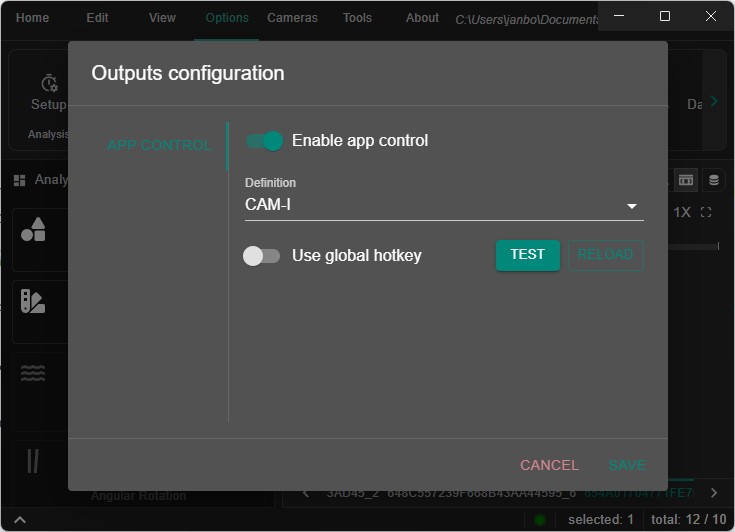
For details on where definition files are stored and how to write them, see App Control Definition File Format.
Triggering observation updates
You can trigger App Control in three ways:
- Select button at the bottom of the Dashboard sends eligible active events for the currently selected camera.
- Global hotkey (if enabled).
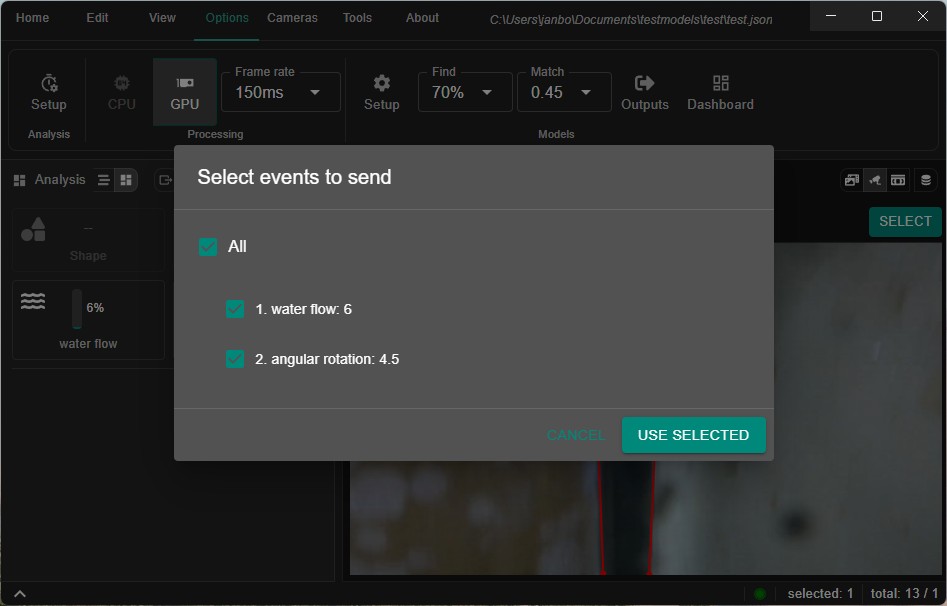
- Clicking anywhere on an active item in the Dashboard sends that item's event directly. If the item contains several active events, a dialog lets you choose which ones to send. A light-blue line below each value marks events that were already sent, and re-sending one asks for confirmation first.
Active-event selection behavior
- If no active events exist (no
endTime), nothing is sent. - If multiple active events exist:
- Minimized events (still running, but currently not visible) are excluded.
- If multiple remain, a selection dialog is shown.
- By default, all events are selected.
Enterconfirms.- Number keys (
1,2,3, ...) select events. ctrl+ number toggles an event on/off.
Troubleshooting
- App Control disables itself: verify the selected definition still exists in the loaded definitions.
- No observation is added: confirm at least one active event exists.
- Wrong target app receives input: verify the
windowmatcher in the definition file. - Too many possible target windows: close duplicates or make the
windowvalue more specific. - Hotkey does nothing: verify global hotkey is enabled and configured correctly.